Not Interested
Phone scams cost victims $1,500. Block known spam numbers before they ring.
Screens texts from unknown senders and blocks known spam callers. Your contacts are never screened.
How to Block Spam Calls on iPhone
A phone scam that works costs its victim $1,500, more than scams by text, email or social media. These iPhone settings, and one app, stop spam calls.
Scams that start with a phone call take more per victim than scams that start any other way: a median of $1,500 when they work, according to FTC fraud reports. To block spam calls on iPhone, open Settings, tap Apps, then Phone, and set Screen Unknown Callers and Call Filtering. Block repeat numbers from Recents with Block Caller. To block known spam numbers automatically, before your phone even rings, turn on a call blocking app under Call Blocking & Identification.
Three iPhone settings and a call blocking app each stop spam calls differently
| Setting | What it does to a spam call | Where it is |
|---|---|---|
| Screen Unknown Callers | Asks unsaved numbers why they're calling, or silences them to voicemail | Settings, Apps, Phone |
| Call Filtering | Moves spam and unknown callers into their own lists | Settings, Apps, Phone |
| Block Caller | Stops one number from ringing you again | Phone app, Recents |
| Call blocking app | Blocks numbers on a known spam list before they ring | Call Blocking & Identification, in Settings |
Screen Unknown Callers decides what happens when an unsaved number calls
This one setting handles every call from a number that isn't in your contacts.
- Open the Settings app, tap Apps, then tap Phone.
- Scroll to Screen Unknown Callers.
- Choose one of three options:
- Never: unsaved numbers ring like any other call.
- Ask Reason for Calling: the caller is asked why they're calling before your phone rings.
- Silence: the call is silenced and sent to voicemail.
Before you turn it on, save the numbers you can't afford to miss: family, your doctor's office, your child's school. Screening only touches numbers you haven't saved. Calls aren't screened while you're roaming, and screening turns off for 24 hours after you call emergency services.
Call Filtering moves spam and unknown callers into separate lists
Call Filtering doesn't stop a call. It keeps spam out of your Recents, so the calls you care about are easy to find:
- Open Settings, tap Apps, then tap Phone.
- Scroll to Call Filtering.
- Turn on the spam filter. Turn on Unknown Callers too if you want missed calls and voicemails from unknown numbers moved to their own list.
To see those lists in the Phone app, tap the Filter button, then Spam or Unknown Callers.
Block Caller stops one number, not the next one
Same number, third time this week? Block it:
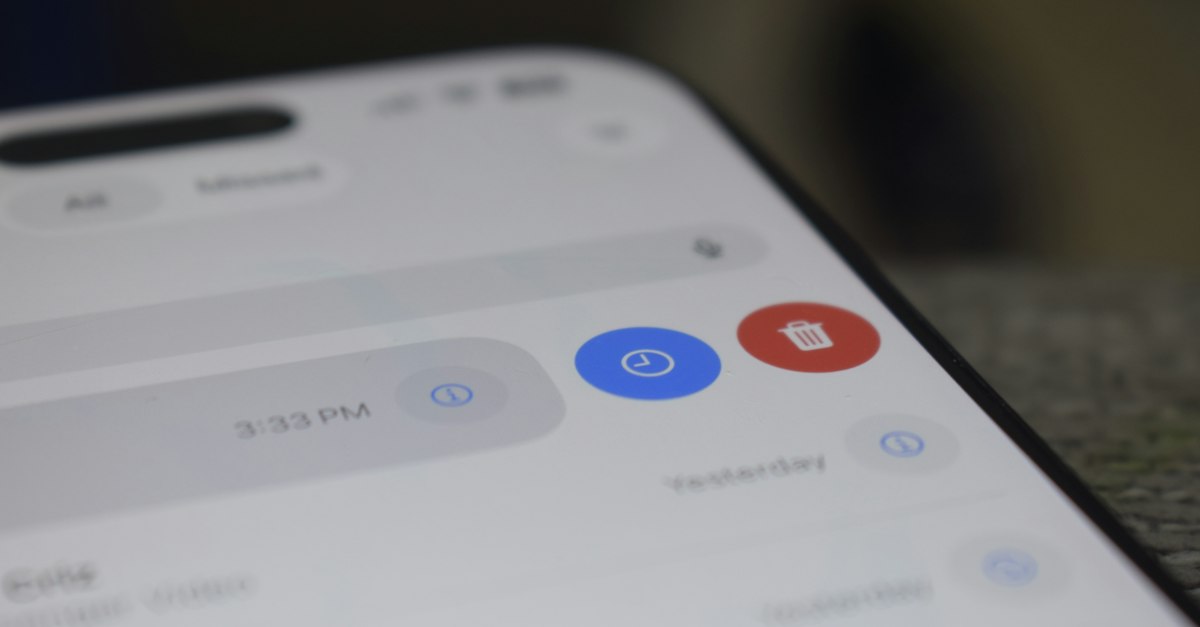
- Open the Phone app and tap Recents.
- Tap the number (or the Info button in Classic view).
- Scroll down and tap Block Caller.
You can also add a number in Settings, Privacy & Security, Blocked Contacts, Add Blocked Contact. A blocked number can still leave a voicemail, but you won't get a notification, and the caller isn't told they're blocked. The catch: any other number still gets through.
A call blocking app blocks spam calls automatically, before they ring
iPhone lets apps give it a list of phone numbers to block or label. When a call comes in, iOS checks your own block list first, then the app's list. The check happens on your phone: iOS loads the list ahead of time and doesn't send your calls anywhere to look them up.
Not Interested keeps a list of known spam numbers on your iPhone and refreshes it once a day in the background:
- Numbers on the block list are blocked before your phone rings.
- Numbers flagged as likely spam still ring, but show Suspected spam on the incoming call screen.
- Your contacts are checked first, so a saved number is never labelled.
Your call history never leaves your phone. To turn it on after installing the app:
- Open Not Interested and tap Turn On under Block spam calls.
- In Settings, turn on Not Interested under Call Blocking & Identification.
Spam texts need their own settings
None of these settings touch Messages. For texts from unknown senders, see how to stop spam texts on iPhone.
Set two switches today and let known spam stop ringing
Screen Unknown Callers and the spam filter take a minute to set. To stop blocking numbers one at a time, get Not Interested: known spam numbers are blocked before your phone rings, the check happens on your iPhone, and your contacts are never labelled.