Not Interested
Silence stops every stranger. Block known spam numbers and let real callers ring.
Screens texts from unknown senders and blocks known spam callers. Your contacts are never screened.
How to Block Unknown Callers on iPhone
To block unknown callers on iPhone, set Screen Unknown Callers to Silence. What each option does, how to turn it off, and how to keep the calls you want.
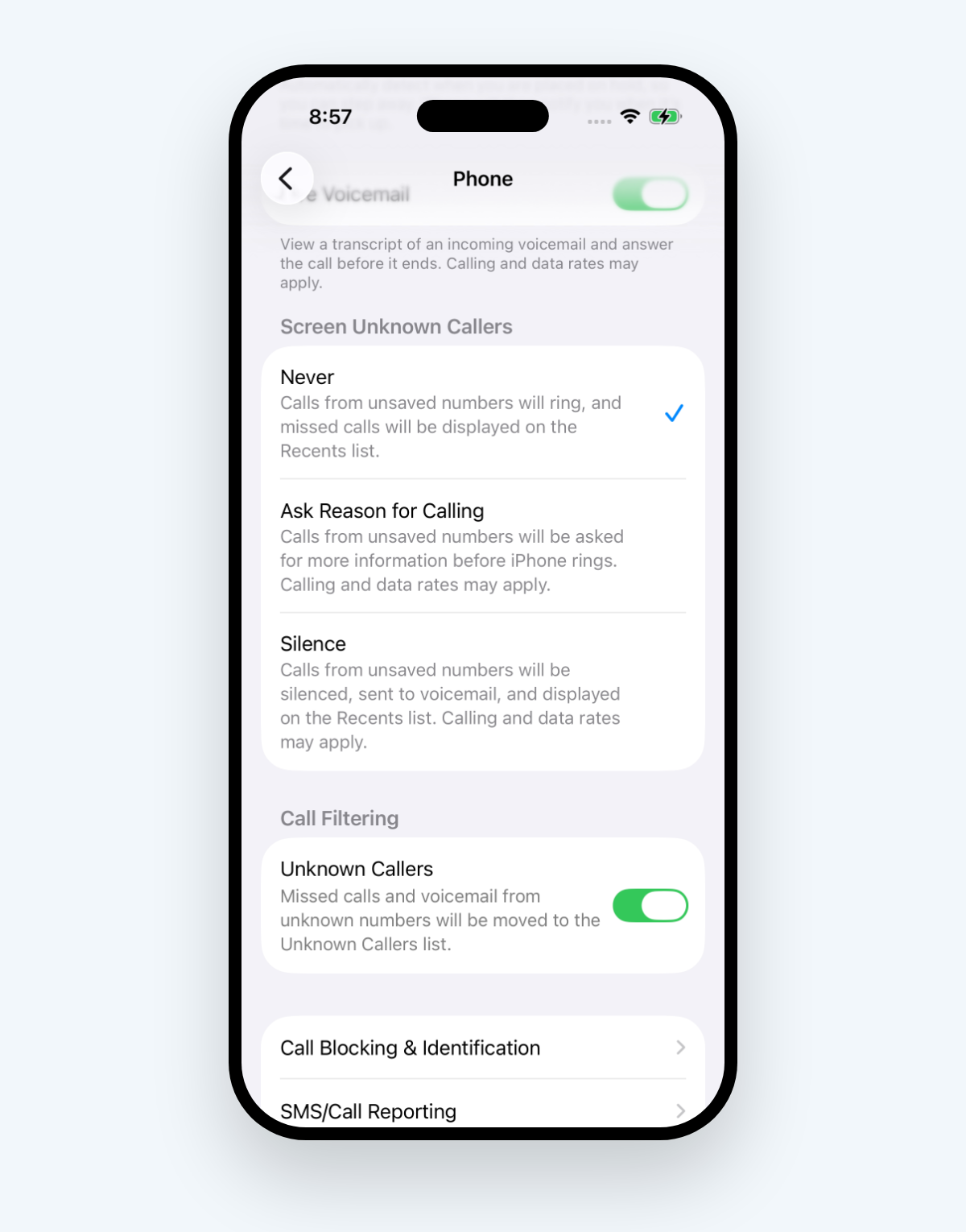
Looking for Silence Unknown Callers in your Phone settings? On a current iPhone, Silence is one of three options under Screen Unknown Callers. To block unknown callers on iPhone, open Settings, tap Apps, tap Phone, then set Screen Unknown Callers to Silence. Calls from numbers that aren't saved in your contacts stop ringing and go straight to voicemail. Choose Ask Reason for Calling to have callers explain themselves before your phone rings, or Never to turn it off.
Screen Unknown Callers has three settings, and Silence is the one that blocks
An unknown caller, to your iPhone, is any number that isn't saved in your contacts. Screen Unknown Callers decides what happens when one calls:
| Setting | What happens when an unsaved number calls |
|---|---|
| Never | Your iPhone rings like any other call |
| Ask Reason for Calling | The call is answered for you and the caller is asked why they're calling, before your phone rings |
| Silence | The call is silenced, sent to voicemail, and shows in your Recents |
Silence sends every unsaved number straight to voicemail
- Open the Settings app.
- Tap Apps, then tap Phone.
- Scroll to Screen Unknown Callers and tap Silence.
The caller can still leave a voicemail, and the call still shows in Recents, so you can call back anyone you were expecting.
Ask Reason for Calling lets real callers explain before your phone rings
Pick Ask Reason for Calling in the same place if Silence feels too strict. Your iPhone answers calls from unknown numbers without interrupting you. Once the caller gives their name and why they're calling, your iPhone rings and shares their answer, so you decide whether to pick up.
Two limits from Apple: calls aren't screened while you're roaming, whatever the setting, and standard calling and data rates may apply.
Save the numbers you can't miss before you turn either one on
Both settings touch only numbers you haven't saved. Before you switch them on, add the callers you always want to reach you to Contacts: family, your doctor's office, your child's school. Apple gives the same advice.
If you call emergency services, call screening turns off for 24 hours.
Turn off Silence Unknown Callers by setting it to Never
Missing calls you wanted? Go back to Settings, Apps, Phone, Screen Unknown Callers and tap Never. Unsaved numbers ring like any other call.
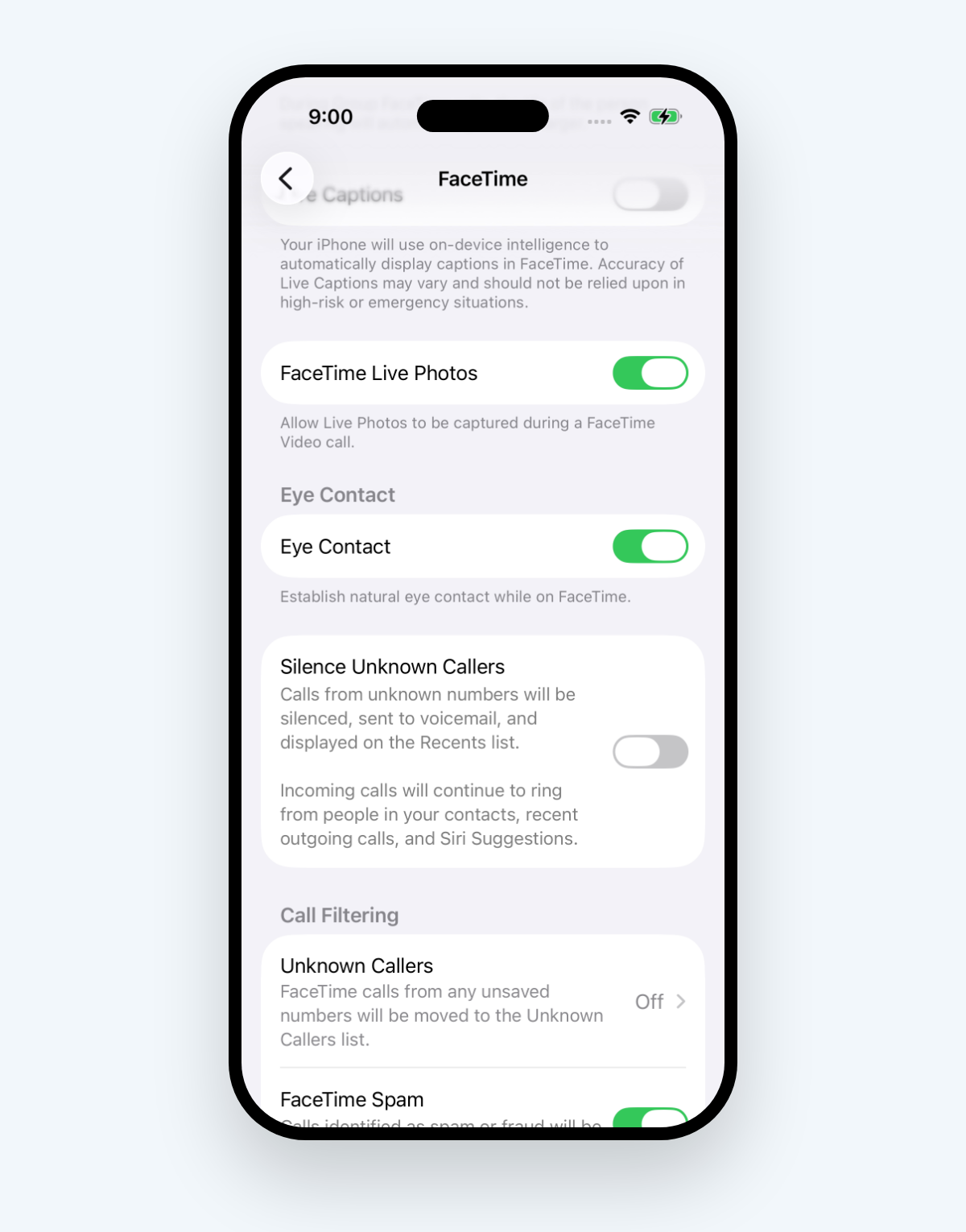
FaceTime has its own switch. Under Settings, Apps, FaceTime, Silence Unknown Callers sends FaceTime calls from unknown numbers to voicemail. Turn it off there separately.
Call Filtering hides unknown callers from your Recents without silencing them
If you'd rather unknown numbers still ring but stay out of your way afterwards:
- Open Settings, tap Apps, then tap Phone.
- Under Call Filtering, turn on Unknown Callers.
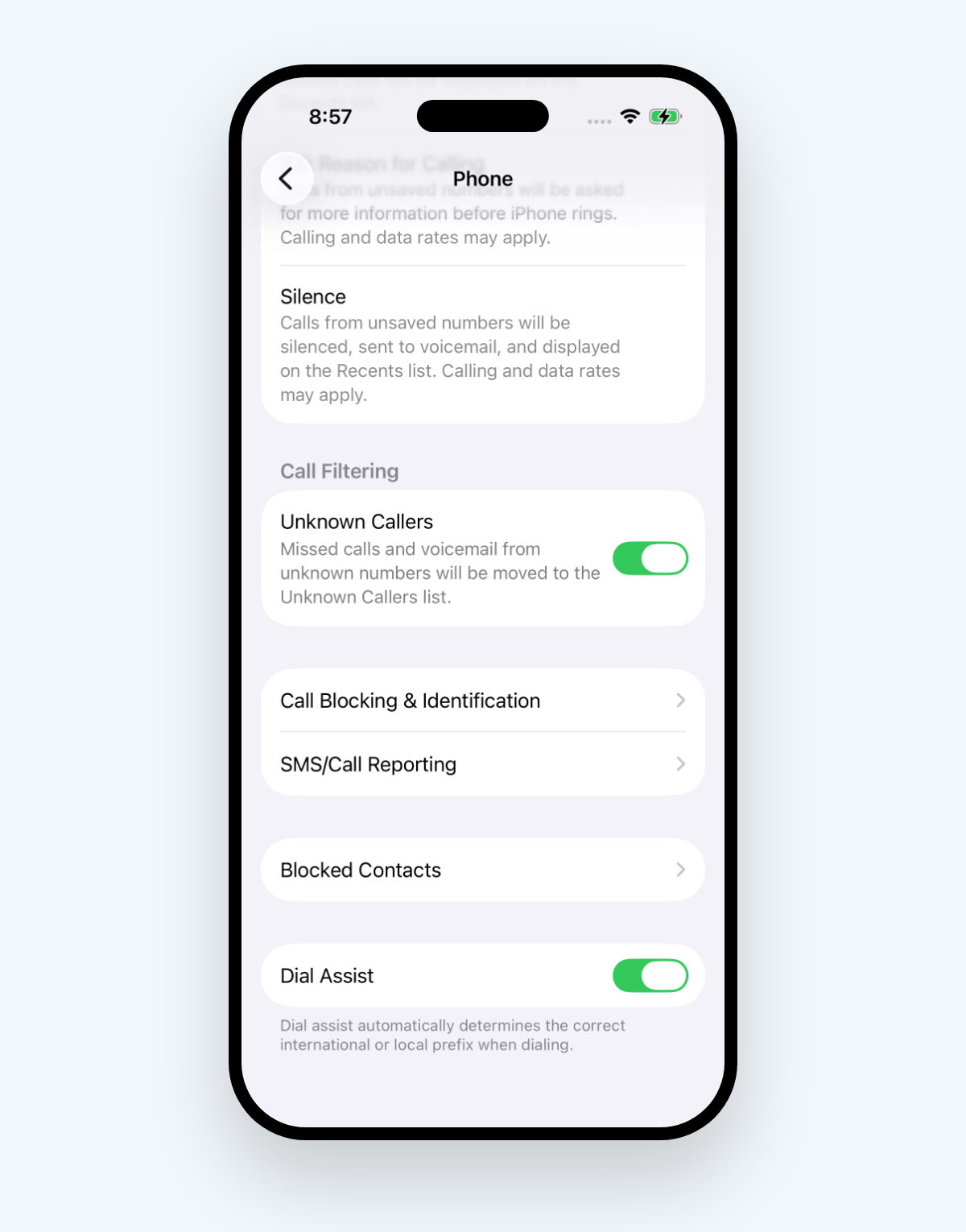
Missed calls and voicemails from unknown numbers move to their own Unknown Callers list. To see it, tap the Filter button in the Phone app, then Unknown Callers. If someone on that list is a caller you know, tap Mark as Known next to the call so their future calls stay in your main list.
Turn on the spam filter under Call Filtering as well: calls your carrier identifies as potential spam or fraud are silenced, sent to voicemail and moved to a Spam list.
Silencing every stranger also silences the calls you want
Silence works by treating every unsaved number the same. If their numbers aren't saved, the pharmacy calling about a prescription, a delivery driver at your door and a new client all land in voicemail next to the robocalls. Leave it on Never instead, and you keep getting spam calls.
A call blocking app takes the other approach: it blocks numbers known for spam and lets the rest ring. Not Interested keeps a list of known spam numbers on your iPhone and refreshes it once a day:
- Numbers on the block list are blocked before your phone rings.
- Numbers flagged as likely spam still ring, but show Suspected spam on the incoming call screen.
The check happens on your phone, and your call history never leaves it. You turn it on in two steps: tap Turn On under Block spam calls in the app, then turn on Not Interested under Settings, Apps, Phone, Call Blocking & Identification. For the rest of the built-in settings, see how to block spam calls on iPhone.
Block known spam callers and let everyone else ring
Set Screen Unknown Callers to the level that suits you, and save the numbers that matter in Contacts. To stop known spam numbers without silencing every stranger, get Not Interested: known spam calls are blocked before your phone rings, and numbers that aren't on the list still ring.